
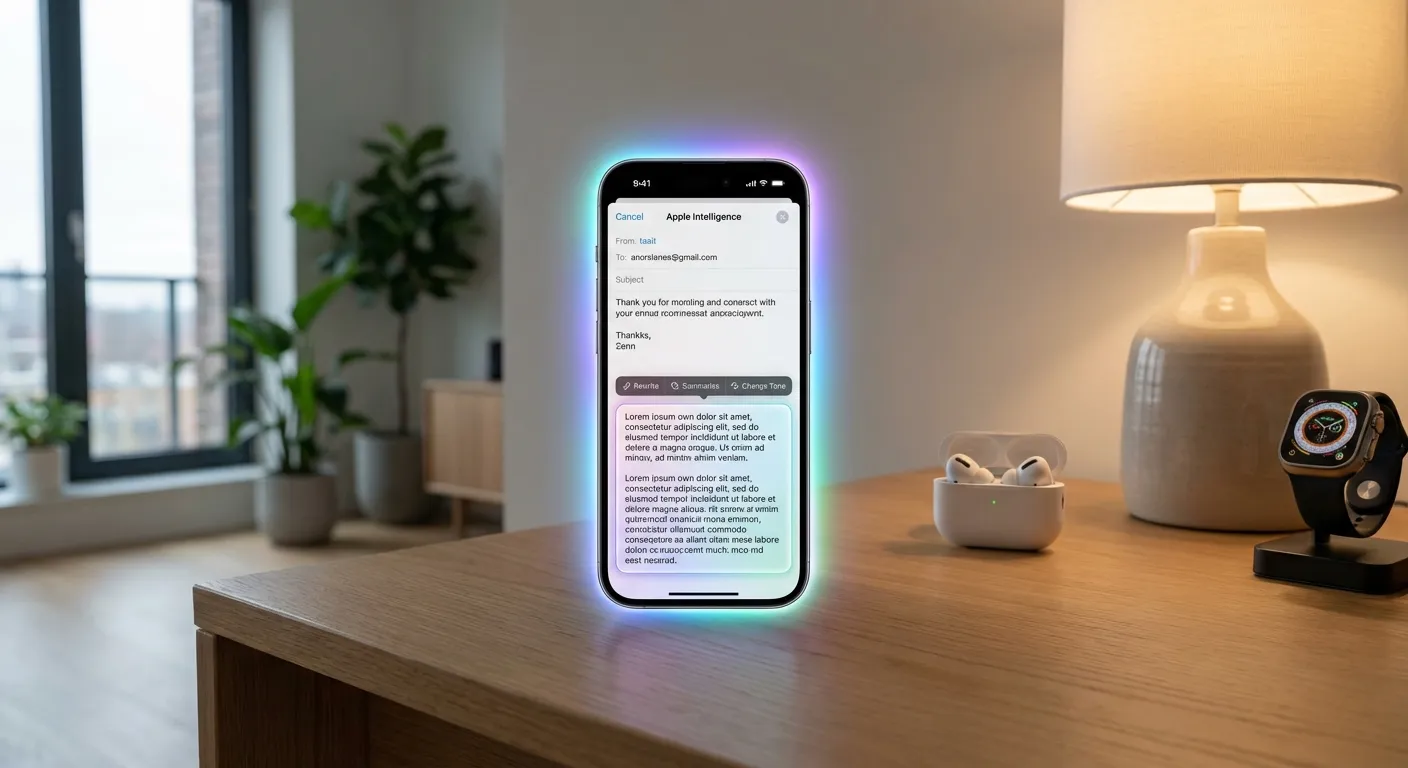
How do you use Apple Intelligence on your iPhone? Open Settings, tap Apple Intelligence & Siri, and toggle on Apple Intelligence. You need an iPhone 15 Pro or newer running iOS 18.1 or later. Once enabled, Apple Intelligence adds writing tools across every text field, smart photo editing in the Photos app, notification summaries, enhanced Siri capabilities, and several other features that work directly on your device without sending your data to external servers.
Apple Intelligence rolled out in stages starting with iOS 18.1 in October 2024, with additional features arriving in iOS 18.2, 18.3, and 18.4. By early 2026, the full suite is available on compatible devices. Unlike cloud-based AI assistants that process everything on remote servers, Apple Intelligence runs most features directly on your iPhone's neural engine, keeping your personal data on your device. Features that require more processing power use Apple's Private Cloud Compute, which processes data without Apple being able to access it.
Which iPhones Support Apple Intelligence
Apple Intelligence requires specific hardware. Not every iPhone that runs iOS 18 can use these features.
Supported devices: iPhone 15 Pro, iPhone 15 Pro Max, iPhone 16, iPhone 16 Plus, iPhone 16 Pro, iPhone 16 Pro Max, and any newer models. The key requirement is Apple's A17 Pro chip or later, which contains the neural engine powerful enough to run on-device AI models.
Not supported: iPhone 15, iPhone 15 Plus, iPhone 14 series, and all earlier models. These phones receive iOS 18 software updates but lack the processing power for Apple Intelligence features. If you're on an older iPhone, upgrading to the iPhone 16 (the most affordable supported model) is the only path to these features.
iPads and Macs: Apple Intelligence also works on iPads with M1 chip or later and Macs with M1 chip or later, with the same feature set adjusted for each device's form factor.
Writing Tools: Your Built-In Editor
The writing tools are arguably the most broadly useful Apple Intelligence feature because they work in every app where you type text, including Mail, Messages, Notes, Safari, and third-party apps.
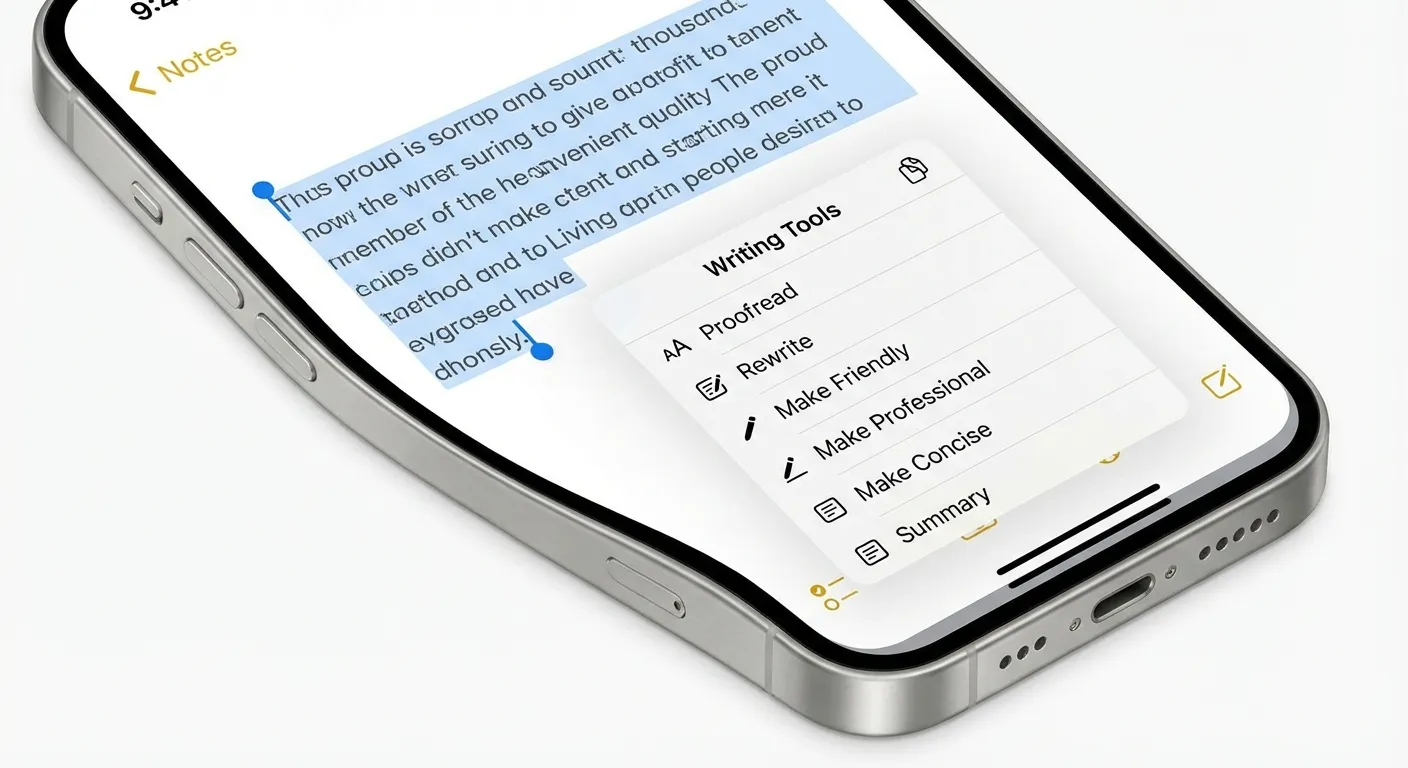
How to access them: Select any text in any app, then tap "Writing Tools" in the popup menu (alongside Cut, Copy, and Paste). You'll see several options:
Proofread scans your text for grammar, spelling, and punctuation errors and offers corrections with explanations for each change. Unlike a basic spell checker, it catches contextual errors like "their" vs. "there" and awkward sentence constructions.
Rewrite generates an alternative version of your selected text while preserving the meaning. This is useful when you've written something that feels clunky but you can't figure out how to improve it. You can request multiple rewrites and choose the version you prefer.
Friendly, Professional, and Concise are tone adjustments. Select "Make Friendly" to soften formal language for a casual email. Choose "Make Professional" to tighten casual writing for a work context. "Make Concise" cuts unnecessary words while keeping the core message. These are particularly helpful for email and messaging.
Summarize condenses long text into key points. This works well for lengthy articles, email threads, or meeting notes where you need to extract the essential information quickly.
Smart Photo Features
Apple Intelligence brings several AI-powered tools to the Photos app that go beyond basic filters.
Clean Up removes unwanted objects from photos. Tap the Clean Up button in the editing tools, then tap or circle an object you want to remove: a person in the background, a trash can, a power line. Apple Intelligence analyzes the surrounding area and fills in the removed section naturally. The results work best for removing small objects against relatively uniform backgrounds.
Natural Language Search lets you find photos by describing what's in them. Type "photos of my dog at the beach" or "sunset over mountains from last summer" into the Photos search bar, and Apple Intelligence identifies matching images based on what it recognizes in your photos. This uses on-device analysis, meaning your photos aren't sent to Apple's servers for processing.
Memory Movies received an Apple Intelligence upgrade that generates highlight reels from your photo library based on text descriptions. Type "our trip to Japan" or "the kids' soccer season," and Apple Intelligence creates a polished video with transitions, music, and a narrative arc selected from your relevant photos and videos.
Siri's Apple Intelligence Upgrade
Siri received its most significant overhaul since launch, with Apple Intelligence providing natural language understanding, on-screen awareness, and the ability to take actions across apps.
Conversational context. Siri now remembers what you said earlier in a conversation. If you ask "What's the weather in Chicago?" and then follow up with "How about this weekend?", Siri understands you're still asking about Chicago. Previous versions of Siri treated each request independently.
On-screen awareness. Siri can now see and act on what's currently displayed on your screen. If someone texts you their address, you can say "Get me directions to that address" without copying and pasting it. If you're reading an article, you can say "Summarize this page" and Siri will process the visible content.
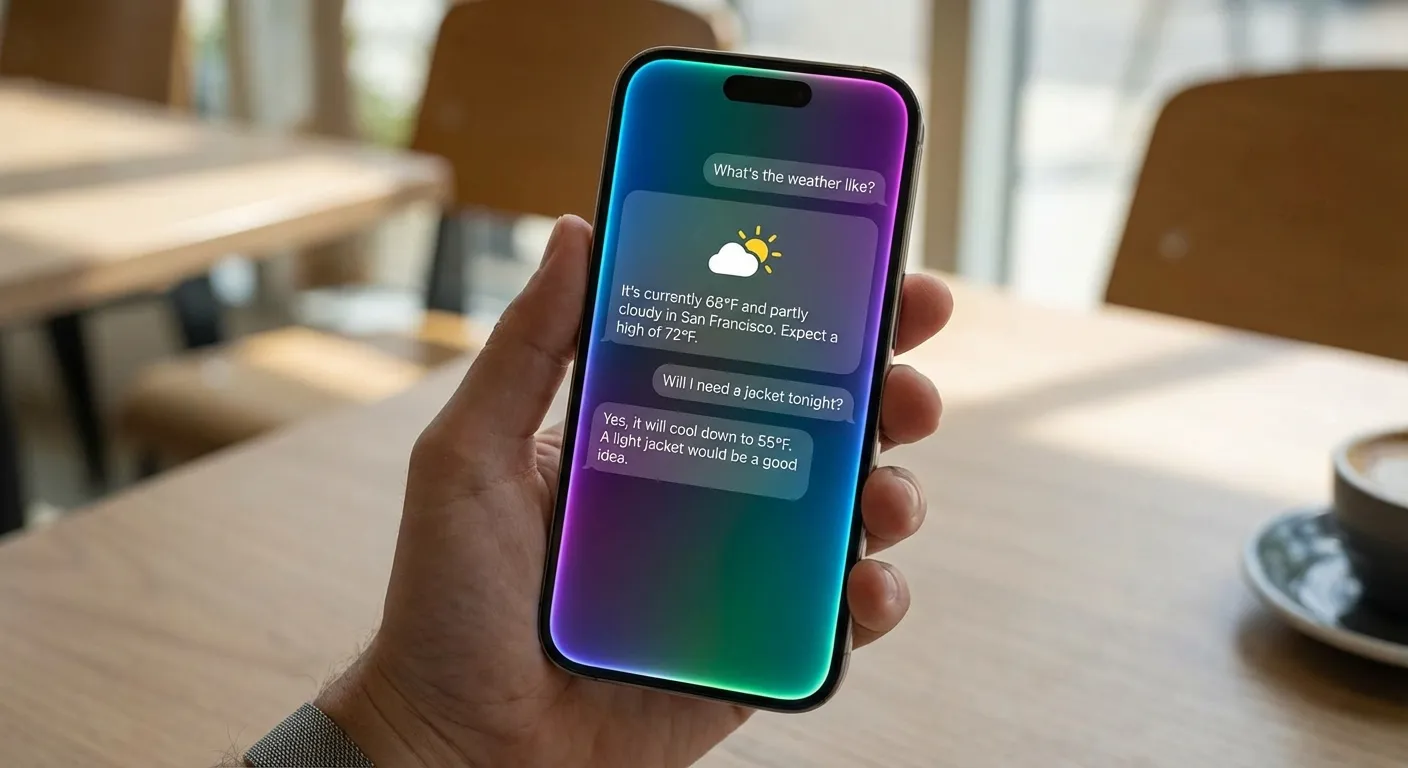
App actions. Siri can perform complex actions across multiple apps. "Send the photos from yesterday's dinner to Mom" works by identifying the relevant photos in your library, attaching them to a message, and addressing it to the correct contact. The range of supported app actions continues to expand with each iOS update.
Type to Siri. If you're in a situation where speaking isn't practical, double-tap the bottom of the screen to type your request to Siri instead. The responses and capabilities are identical whether you type or speak.
Notification Summaries and Priority
Apple Intelligence analyzes your notifications and provides two helpful features.
Notification summaries condense long notification text into brief, scannable previews. Instead of seeing the first line of a lengthy email or message thread, you see a one-sentence summary of the key content. This appears on your lock screen and notification center automatically.
Priority notifications surface the messages and alerts that Apple Intelligence determines are most important based on your patterns. Time-sensitive messages, messages from contacts you interact with frequently, and notifications about upcoming events get promoted above routine alerts.
Both features work locally on your device, analyzing your notification patterns and content without sending data to Apple. If you find the summaries inaccurate or unhelpful for certain apps, you can disable them per-app in Settings under Notifications.
For more on managing your device efficiently, our guide on extending phone battery life covers how to keep your iPhone running all day, and our piece on freeing up phone storage helps make room for Apple Intelligence's on-device models. If you're curious about AI beyond Apple's ecosystem, see our explainer on what AI agents are for the broader picture.
Key Takeaways
Apple Intelligence is available on iPhone 15 Pro and newer models running iOS 18.1 or later. Enable it in Settings under Apple Intelligence & Siri. The writing tools work in every text field for proofreading, rewriting, and tone adjustment. Photos gets AI-powered object removal and natural language search. Siri now understands context, sees your screen, and handles multi-step actions across apps. Most processing happens on your device, keeping your data private. Start with the writing tools and Clean Up in Photos, as those features deliver the most immediate everyday value.
Sources
- Apple Intelligence Overview - Apple
- Apple Intelligence and Privacy - Apple Support
- iOS 18 Feature Availability - Apple
- Private Cloud Compute: A New Frontier for AI Privacy - Apple Security Research